
11 KiB









Integrated Edit Environment (IEE)
A plugin for SiYuan Note that not only manage files and folders in the workspace directory but you can also edit files using text editor Monaco Editor.
PREVIEW
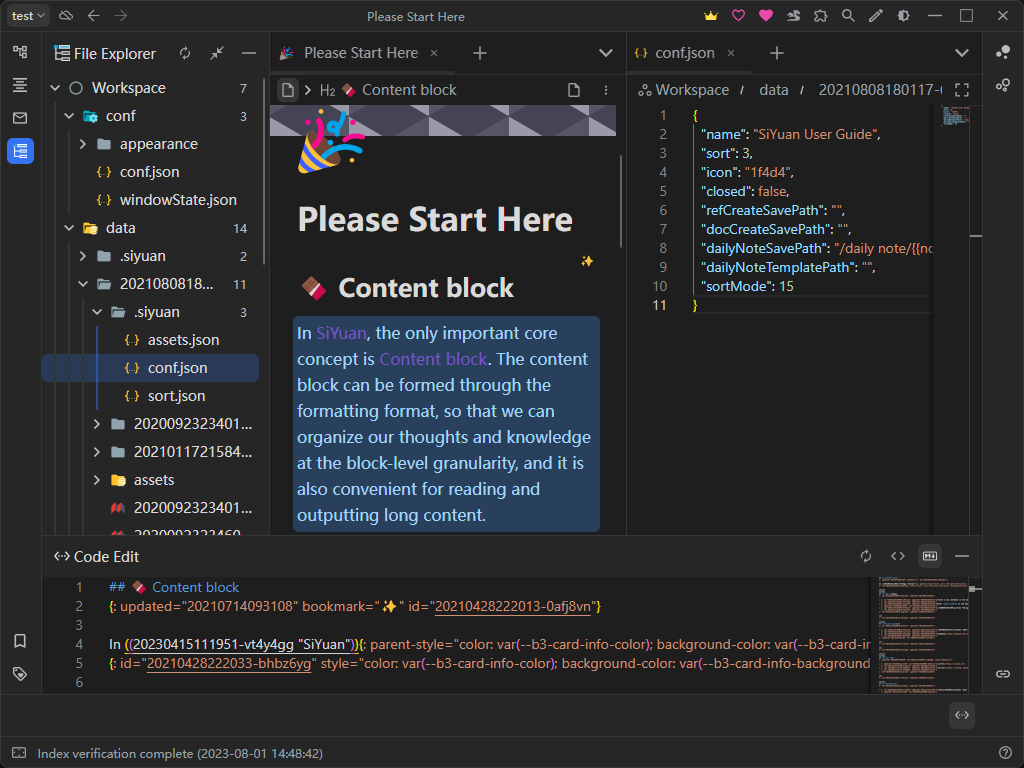
Feature Introduction
File Explorer Panel
This panel allows you to manage all files and folders in the workspace directory.
| Function | Operation | Applicable Objects | Remarks |
|---|---|---|---|
| Context Menu | Right-click on a file/folder/root directory with the mouse | File & Folder & Root directory | The menu can also be opened by clicking the menu button |
| Move File/Folder | Drag and drop files/folders | File & Folder | The target location cannot have files/folders with the same name |
| Bulk Upload Files/Folders | Drag and drop files/folders from the system file explorer to the desired upload folder | Folder | After dragging and dropping, the list of files to be uploaded is displayed. Once confirmed, the upload will start |
| Download File/Folder | Drag and drop the file/folder outside the window | File & Folder | The folder will be packaged as a compressed file and downloaded |
Editor Panel
This panel displays the markdown/kramdown source code of the currently edited block, allowing you to edit and save the kramdown code of all blocks and the markdown code of leaf blocks.
| Function | Operation | Remarks |
|---|---|---|
| Code Auto Wrapping | Alt + Z | Turn on/off the auto wrapping feature Default is the option in the SiYuan settings Editor>Code block wrapping |
| Save | Ctrl + S | If the currently edited block can be saved (editing markdown of a leaf block or kramdown source code of any block), it saves the current changes |
| Auto Save | Panel button | When enabled, if the currently edited block can be saved, the corresponding block will be updated in the editor whenever there is a change in its content |
| Kramdown Mode | Panel button | Turn on/off the kramdown mode When turned on, the editor displays the kramdown source code of the currently edited block When turned off, the editor displays the markdown source code of the currently edited block |
| Switch Editing Scheme | Panel button | In kramdown mode: When turned off, inline elements use markdown notation When turned on, inline elements use <span> tagsIn markdown mode: When turned off, inline elements use extended markdown notation When turned on, inline elements only use basic markdown notation |
Settings Introduction
-
General Settings-
Text Editor-
This is a switch
-
Default state: enabled
-
This switch controls whether the text editor side panel is enabled
- This panel displays the markdown/kramdown source code of the currently edited content block
-
After changing the state of this switch, the interface will refresh to close the text editor panel
-
-
Explorer- This is a switch
- Default state: enabled
- This switch controls whether the file explorer side panel is enabled
- After changing the state of this switch, the interface will refresh to close the file explorer panel
-
Safe Mode- This is a switch
- Default state: disabled
- When enabled, it disables certain dangerous operations in important directories
- When disabled, there will be three confirmations before performing dangerous operations in important directories
-
Reset Settings-
This is a button
-
Resets all settings to their default values
-
Clicking this button will display a confirmation dialog
- After clicking the confirmation button in the dialog, all options of this plugin will be reset to the default values, and the current interface will be automatically refreshed
-
-
-
Menu Settings-
Code Snippet Menu- This is a switch
- Default state: enabled
- This switch controls whether the right-click menu in Settings → Appearance → Code Snippets is enabled. This menu allows you to open Monaco Editor to view/edit code snippets
-
Inbox Menu- This is a switch
- Default state: enabled
- This switch controls whether the right-click menu of the vault is enabled. This menu allows you to open Monaco Editor to view the contents of the inbox
-
File History Menu- This is a switch
- Default state: enabled
- This switch controls whether the right-click menu in the file history tab of the file history dialog is enabled. This menu allows you to open Monaco Editor in compare mode to view/edit the change history of files
-
Document History Menu- This is a switch
- Default state: enabled
- This switch controls whether the right-click menu in the document history dialog is enabled. This menu allows you to open Monaco Editor in compare mode to view/edit document version history and the current version
-
Snapshot Menu- This is a switch
- Default state: enabled
- This switch controls whether the right-click menu in the snapshot tab of the file history dialog is enabled. This menu allows you to open Monaco Editor in compare mode to view changes in snapshots
-
-
Editor Settings-
Global Settings-
Default Editor for Markdown Files- Set the default editor for opening
*.mdfiles - Default is to open
*.mdfiles with the Vditor editor
- Set the default editor for opening
-
-
Monaco Editor-
Editor Word Wrapping Solution-
Set the word wrapping solution used in the editor
-
options
off: Do not wrapon: Wrap at the visible viewportwordWrapColumn: Wrap at the custom column widthbounded: Wrap at the minimum of custom column width and viewport width
-
-
-
Vditor Editor-
Resource File Saving Scheme- Specify the scheme for saving (image, etc.) resource files. Different schemes will save resource files in different directories. The actual saving directory will also be affected by the Editor Settings > Vditor Editor > Resource File Saving Directory option.
-
Resource File Saving Directory-
Specify the exact directory for saving resource files. The actual saving directory will also be affected by the Editor Settings > Vditor Editor > Resource File Saving Scheme option.
-
Examples
-
Resource File Saving Scheme:Upload to data/assets directory/assets/: Save the resource files in theworkspace/data/assets/directory/assets/vditor/: Save the resource files in theworkspace/data/assets/vditor/directory
-
Resource File Saving Scheme:Specify directory using relative path./: Save the resource files in the same directory as the current file./../: Save the resource files in the parent directory of the current file./assets/: Save the resource files in theassetsfolder of the current file's directory
-
Resource File Saving Scheme:Specify directory using absolute path/: Save the resource files in theworkspace/directory/assets/: Save the resource files in theworkspace/assets/directory/vditor/assets/: Save the resource files in theworkspace/vditor/assets/directory
-
-
-
-