
158 lines
11 KiB
Markdown
158 lines
11 KiB
Markdown
<div align="center">
|
|
<img alt="icon" src="https://cdn.jsdelivr.net/gh/Zuoqiu-Yingyi/siyuan-plugin-monaco-editor/public/icon.png" style="width: 8em; height: 8em;">
|
|
|
|
---
|
|
[](https://github.com/Zuoqiu-Yingyi/siyuan-plugin-monaco-editor/releases/latest)
|
|
[](https://github.com/Zuoqiu-Yingyi/siyuan-plugin-monaco-editor/releases/latest)
|
|
[](https://github.com/Zuoqiu-Yingyi/siyuan-plugin-monaco-editor/blob/main/LICENSE)
|
|
[](https://github.com/Zuoqiu-Yingyi/siyuan-plugin-monaco-editor/commits/main)
|
|

|
|

|
|

|
|
[](https://github.com/Zuoqiu-Yingyi/siyuan-plugin-monaco-editor/releases)
|
|
|
|
---
|
|
[简体中文](./README_zh_CN.md) \| English
|
|
|
|
---
|
|
</div>
|
|
|
|
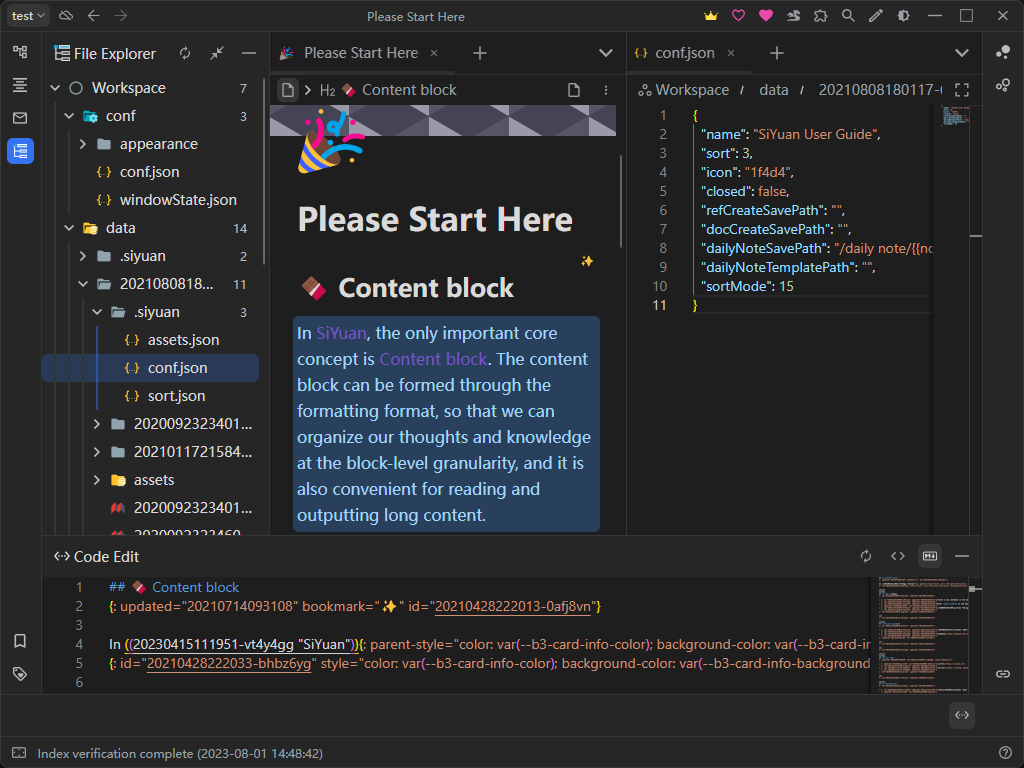
# Integrated Edit Environment (IEE)
|
|
|
|
A plugin for [SiYuan Note](https://github.com/siyuan-note/siyuan) that not only manage files and folders in the workspace directory but you can also edit files using text editor [Monaco Editor](https://github.com/Microsoft/monaco-editor).
|
|
|
|
## PREVIEW
|
|
|
|
|
|
|
|
## Feature Introduction
|
|
|
|
### File Explorer Panel
|
|
|
|
This panel allows you to manage all files and folders in the workspace directory.
|
|
|
|
| Function | Operation | Applicable Objects | Remarks |
|
|
| ------------------------- | -------------------------------------------------------------------------------------- | ------------------------------ | ----------------------------------------------------------------------------------------------------------------- |
|
|
| Context Menu | Right-click on a file/folder/root directory with the mouse | File & Folder & Root directory | The menu can also be opened by clicking the menu button |
|
|
| Move File/Folder | Drag and drop files/folders | File & Folder | The target location cannot have files/folders with the same name |
|
|
| Bulk Upload Files/Folders | Drag and drop files/folders from the system file explorer to the desired upload folder | Folder | After dragging and dropping, the list of files to be uploaded is displayed. Once confirmed, the upload will start |
|
|
| Download File/Folder | Drag and drop the file/folder outside the window | File & Folder | The folder will be packaged as a compressed file and downloaded |
|
|
|
|
### Editor Panel
|
|
|
|
This panel displays the markdown/kramdown source code of the currently edited block, allowing you to edit and save the kramdown code of all blocks and the markdown code of leaf blocks.
|
|
|
|
| Function | Operation | Remarks |
|
|
| --------------------- | ------------------- | ------------------------------------------------------------------------------------------------------------------------------------------------------------------------------------------------------------------------------------------------------------------------------------------------------------ |
|
|
| Code Auto Wrapping | <kbd>Alt + Z</kbd> | Turn on/off the auto wrapping feature<br />Default is the option in the SiYuan settings <kbd>Editor</kbd>><kbd>Code block wrapping</kbd> |
|
|
| Save | <kbd>Ctrl + S</kbd> | If the currently edited block can be saved (editing markdown of a leaf block or kramdown source code of any block),<br />it saves the current changes |
|
|
| Auto Save | Panel button | When enabled, if the currently edited block can be saved,<br />the corresponding block will be updated in the editor whenever there is a change in its content |
|
|
| Kramdown Mode | Panel button | Turn on/off the kramdown mode<br />When turned on, the editor displays the kramdown source code of the currently edited block<br />When turned off, the editor displays the markdown source code of the currently edited block |
|
|
| Switch Editing Scheme | Panel button | In kramdown mode:<br />When turned off, inline elements use markdown notation<br />When turned on, inline elements use `<span>` tags<br />In markdown mode:<br />When turned off, inline elements use extended markdown notation<br />When turned on, inline elements only use basic markdown notation<br /> |
|
|
|
|
## Settings Introduction
|
|
|
|
* `General Settings`
|
|
|
|
* `Text Editor`
|
|
|
|
* This is a switch
|
|
* Default state: *enabled*
|
|
* This switch controls whether the text editor side panel is enabled
|
|
|
|
* This panel displays the markdown/kramdown source code of the currently edited content block
|
|
* After changing the state of this switch, the interface will refresh to close the text editor panel
|
|
* `Explorer`
|
|
|
|
* This is a switch
|
|
* Default state: *enabled*
|
|
* This switch controls whether the file explorer side panel is enabled
|
|
* After changing the state of this switch, the interface will refresh to close the file explorer panel
|
|
* `Safe Mode`
|
|
|
|
* This is a switch
|
|
* Default state: *disabled*
|
|
* When enabled, it disables certain dangerous operations in important directories
|
|
* When disabled, there will be three confirmations before performing dangerous operations in important directories
|
|
* `Reset Settings`
|
|
|
|
* This is a button
|
|
* Resets all settings to their default values
|
|
* Clicking this button will display a confirmation dialog
|
|
|
|
* After clicking the confirmation button in the dialog, all options of this plugin will be reset to the default values, and the current interface will be automatically refreshed
|
|
* `Menu Settings`
|
|
|
|
* `Code Snippet Menu`
|
|
|
|
* This is a switch
|
|
* Default state: *enabled*
|
|
* This switch controls whether the right-click menu in Settings → Appearance → Code Snippets is enabled. This menu allows you to open Monaco Editor to view/edit code snippets
|
|
* `Inbox Menu`
|
|
|
|
* This is a switch
|
|
* Default state: *enabled*
|
|
* This switch controls whether the right-click menu of the vault is enabled. This menu allows you to open Monaco Editor to view the contents of the inbox
|
|
* `File History Menu`
|
|
|
|
* This is a switch
|
|
* Default state: *enabled*
|
|
* This switch controls whether the right-click menu in the file history tab of the file history dialog is enabled. This menu allows you to open Monaco Editor in compare mode to view/edit the change history of files
|
|
* `Document History Menu`
|
|
|
|
* This is a switch
|
|
* Default state: *enabled*
|
|
* This switch controls whether the right-click menu in the document history dialog is enabled. This menu allows you to open Monaco Editor in compare mode to view/edit document version history and the current version
|
|
* `Snapshot Menu`
|
|
|
|
* This is a switch
|
|
* Default state: *enabled*
|
|
* This switch controls whether the right-click menu in the snapshot tab of the file history dialog is enabled. This menu allows you to open Monaco Editor in compare mode to view changes in snapshots
|
|
* `Editor Settings`
|
|
|
|
* `Global Settings`
|
|
|
|
* `Default Editor for Markdown Files`
|
|
|
|
* Set the default editor for opening `*.md` files
|
|
* Default is to open `*.md` files with the Vditor editor
|
|
* `Monaco Editor`
|
|
|
|
* `Editor Word Wrapping Solution`
|
|
|
|
* Set the word wrapping solution used in the editor
|
|
* options
|
|
|
|
* `off`: Do not wrap
|
|
* `on`: Wrap at the visible viewport
|
|
* `wordWrapColumn`: Wrap at the custom column width
|
|
* `bounded`: Wrap at the minimum of custom column width and viewport width
|
|
* `Vditor Editor`
|
|
|
|
* `Resource File Saving Scheme`
|
|
|
|
* Specify the scheme for saving (image, etc.) resource files. Different schemes will save resource files in different directories. The actual saving directory will also be affected by the <kbd>Editor Settings > Vditor Editor > Resource File Saving Directory</kbd> option.
|
|
* `Resource File Saving Directory`
|
|
|
|
* Specify the exact directory for saving resource files. The actual saving directory will also be affected by the <kbd>Editor Settings > Vditor Editor > Resource File Saving Scheme</kbd> option.
|
|
* Examples
|
|
|
|
* `Resource File Saving Scheme`: `Upload to data/assets directory`
|
|
|
|
* `/assets/`: Save the resource files in the `workspace/data/assets/` directory
|
|
* `/assets/vditor/`: Save the resource files in the `workspace/data/assets/vditor/` directory
|
|
* `Resource File Saving Scheme`: `Specify directory using relative path`
|
|
|
|
* `./`: Save the resource files in the same directory as the current file
|
|
* `./../`: Save the resource files in the parent directory of the current file
|
|
* `./assets/`: Save the resource files in the `assets` folder of the current file's directory
|
|
* `Resource File Saving Scheme`: `Specify directory using absolute path`
|
|
|
|
* `/`: Save the resource files in the `workspace/` directory
|
|
* `/assets/`: Save the resource files in the `workspace/assets/` directory
|
|
* `/vditor/assets/`: Save the resource files in the `workspace/vditor/assets/` directory
|
|
|
|
## CHANGELOG
|
|
|
|
[CHANGELOG.md](https://github.com/Zuoqiu-Yingyi/siyuan-plugin-monaco-editor/blob/main/CHANGELOG.md)
|